
RadioButton コントロールはグループ内で1つだけ選択状態にすることができます。
複数のグループを作りたい場合には、GroupName プロパティを使用してグループを作成します。
同じグループに属する項目には、同じグループ名を付けます。
下記は、Fruits というグループと Vegetable という2つのグループを作成する例です。
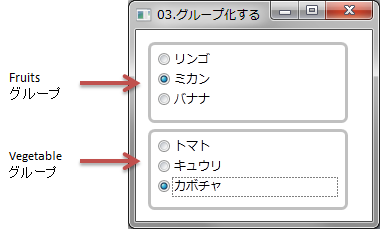
XAMLの例
<Border CornerRadius="5">
    <StackPanel>
        <RadioButton Content="リンゴ" Name="RadioButton1"
                     GroupName="Fruits" />
        <RadioButton Content="ミカン" Name="RadioButton2"
                     GroupName="Fruits" />
        <RadioButton Content="バナナ" Name="RadioButton3"
                     GroupName="Fruits" />
    </StackPanel>
</Border>
<Border CornerRadius="5">
    <StackPanel>
        <RadioButton Content="トマト" Name="RadioButton4"
                     GroupName="Vegetable" />
        <RadioButton Content="キュウリ" Name="RadioButton5"
                     GroupName="Vegetable" />
        <RadioButton Content="カボチャ" Name="RadioButton6"
                     GroupName="Vegetable" />
    </StackPanel>
</Border>
VBの例
'Fruitsグループ
RadioButton1.GroupName = "Fruits"
RadioButton2.GroupName = "Fruits"
RadioButton3.GroupName = "Fruits"

'Vegetableグループ
RadioButton4.GroupName = "Vegetable"
RadioButton5.GroupName = "Vegetable"
RadioButton6.GroupName = "Vegetable"
C#の例
// Fruitsグループ
radioButton1.GroupName = "Fruits";
radioButton2.GroupName = "Fruits";
radioButton3.GroupName = "Fruits";

// Vegetableグループ
radioButton4.GroupName = "Vegetable";
radioButton5.GroupName = "Vegetable";
radioButton6.GroupName = "Vegetable";