
本 Tips はWPFのみとなります。あらかじめご了承ください。
タブに[X]ボタンを追加して、クリック時にタブが閉じられるようにする方法について説明します。
完成イメージは下記の通りです。
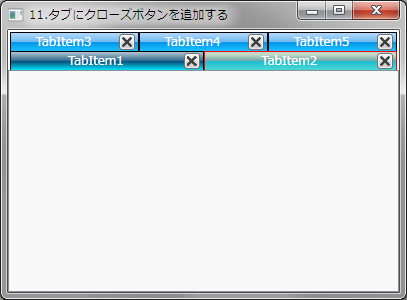
まず、Visual Studio でプロジェクト名を右クリックし、[追加]-[新しい項目]をクリックし、表示されたダイアログの左側で「WPF」を選択し、右側で「カスタムコントロール」を選択します。
名前欄には「CloseTabItem」と入力し、新規クラスを作成します。
デフォルトで作成されたコンストラクタには手を加えず、継承元を TabItem にしてその他の部分を追加入力してください。
このCloseTabItem クラスは、TabItem クラスから派生させることでタブの機能を継承しつつ、「クローズボタンがクリックされた」というイベントを発生させるようにしています。
VBの例
Public Class CloseTabItem
    Inherits TabItem

    Shared Sub New()
        DefaultStyleKeyProperty.OverrideMetadata(GetType(CloseTabItem),
                                                 New FrameworkPropertyMetadata(GetType(CloseTabItem)))
    End Sub

    'ルーティングイベントの登録
    Public Shared ReadOnly CloseTabItemEvent As RoutedEvent =
        EventManager.RegisterRoutedEvent("ClosedTab", RoutingStrategy.Bubble,
                                         GetType(RoutedEventHandler), GetType(CloseTabItem))

    'CloseTabイベント
    Public Custom Event ClosedTab As RoutedEventHandler
        AddHandler(ByVal value As RoutedEventHandler)
            Me.AddHandler(CloseTabItemEvent, value)
        End AddHandler

        RemoveHandler(ByVal value As RoutedEventHandler)
            Me.RemoveHandler(CloseTabItemEvent, value)
        End RemoveHandler

        RaiseEvent(ByVal sender As Object, ByVal e As RoutedEventArgs)
            Me.RaiseEvent(e)
        End RaiseEvent
    End Event

    Public Overrides Sub OnApplyTemplate()
        MyBase.OnApplyTemplate()

        'リソースのPART_Closeを取得
        Dim closeTabButton As Button = MyBase.GetTemplateChild("PART_Close")
        If Not IsNothing(closeTabButton) Then
            'クローズボタンにクリックイベントを作成
            Me.AddHandler(Button.ClickEvent, New RoutedEventHandler(AddressOf closeButton_Click))
        End If
    End Sub

    '[X]ボタンが押されたときの処理
    Private Sub closeButton_Click()
        'CloseTabItemイベントを発生させる
        Me.RaiseEvent(New RoutedEventArgs(CloseTabItemEvent))
    End Sub
End Class
C#の例
using System;
using System.Collections.Generic;
using System.Linq;
using System.Text;
using System.Windows;
using System.Windows.Controls;
using System.Windows.Controls.Primitives;
using System.Windows.Data;
using System.Windows.Documents;
using System.Windows.Input;
using System.Windows.Media;
using System.Windows.Media.Imaging;
using System.Windows.Shapes;

namespace TabControl
{
    public class CloseTabItem : TabItem
    {
        static CloseTabItem()
        {
            DefaultStyleKeyProperty.OverrideMetadata(typeof(CloseTabItem),
                new FrameworkPropertyMetadata(typeof(CloseTabItem)));
        }

        /// ルーティングイベントの登録
        public static readonly RoutedEvent CloseTabItemEvent =
            EventManager.RegisterRoutedEvent("ClosedTab", RoutingStrategy.Bubble,
            typeof(RoutedEventHandler), typeof(CloseTabItem));

        // CloseTabイベント
        public event RoutedEventHandler ClosedTab
        {
            add { AddHandler(CloseTabItemEvent, value); }
            remove { RemoveHandler(CloseTabItemEvent, value); }
        }

        public override void OnApplyTemplate()
        {
            base.OnApplyTemplate();

            Button closeTabButton = this.GetTemplateChild("PART_Close") as Button;
            if (closeTabButton != null)
                closeTabButton.Click += new System.Windows.RoutedEventHandler(closeButton_Click);
        }

        /// [X]ボタンが押されたときの処理
        private void closeButton_Click(object sender, System.Windows.RoutedEventArgs e)
        {
            // CloseTabItemイベントを発生させる
            this.RaiseEvent(new RoutedEventArgs(CloseTabItemEvent));
        }
    }
}
次に、実際の見た目を「クローズボタンのついたタブ」にするために、CloseTabItem のコントロールテンプレートを作成します。
ここでは「タブの背景色を設定する」で紹介したテンプレートの一部を修正して作成することとします。
タブに「クローズボタン」を追加したいので、コンテントを表示する部分(ContentPresenterのある箇所)に「X印のボタン」を追加すればよいことがわかります。
下記に示した<DockPane>要素の中が実際のコンテントを表示する部分のコードになります。
[X]印ボタンは16×16のサイズで、Xの形をしたpngイメージを表示させて作成しています。また、名前を”PART_Close”として、先ほど作成したクラスでクリックイベントを拾えるようにしています。
XAMLの例
<Window x:Class="Window11"
    xmlns="http://schemas.microsoft.com/winfx/2006/xaml/presentation"
    xmlns:x="http://schemas.microsoft.com/winfx/2006/xaml"
    ↓ネームスペースを追加
    xmlns:local="clr-namespace:TabControl"

<ControlTemplate TargetType="{x:Type local:CloseTabItem}">
    <Grid SnapsToDevicePixels="true">
        <Border x:Name="Bd" Background="{TemplateBinding Background}" BorderBrush="{TemplateBinding BorderBrush}" BorderThickness="1,1,1,0" >
            <DockPanel x:Name="ContentPanel">
                <!-- [X]ボタン ここから-->
                <Button x:Name="PART_Close" HorizontalAlignment="Center" VerticalAlignment="Center"
                        Margin="3,0,3,0" Width="16" Height="16" DockPanel.Dock="Right"
                        Style="{DynamicResource CloseableTabItemButtonStyle}">
                    <Image Source="Images/close.png" />
                </Button>
                <!-- [X]ボタン ここまで -->
                <ContentPresenter x:Name="Content" SnapsToDevicePixels="{TemplateBinding SnapsToDevicePixels}"
                                  ContentSource="Header" RecognizesAccessKey="True" HorizontalAlignment="Center"
                                  VerticalAlignment="Center" Margin="{TemplateBinding Padding}"/>
            </DockPanel>
        </Border>
    </Grid>
    :省略

</ControlTemplate>
あとは、実際にWPFアプリケーションの中でTabControlを配置して、タブに CloseTabItem を配置すれば[X]印ボタンのタブを持つタブコントロールが表示されます。
CloseTabItemをTabContorolのXAML例
<TabControl Name="TabControl1">
    <local:CloseTabItem Header="TabItem1">
        <Grid />
    </local:CloseTabItem>
    <local:CloseTabItem Header="TabItem2">
        <Grid />
    </local:CloseTabItem>
    <local:CloseTabItem Header="TabItem3">
        <Grid />
    </local:CloseTabItem>
    <local:CloseTabItem Header="TabItem4">
        <Grid />
    </local:CloseTabItem>
    <local:CloseTabItem Header="TabItem5">
        <Grid />
    </local:CloseTabItem>
</TabControl>
最後に、クローズボタンがクリックされた時にタブが閉じられるようにするために、TabControlを配置したWindowに下記のコードを追加します。
VBの例
Public Class Window11
    Private Sub Content_Initialized(ByVal sender As System.Object, ByVal e As System.EventArgs) Handles MyBase.Initialized
        'イベントハンドラーの追加
        Me.AddHandler(CloseTabItem.CloseTabItemEvent, New RoutedEventHandler(AddressOf Me.ClosedTab))
    End Sub

    ' [X]ボタンクリック時の処理
    Public Sub ClosedTab(ByVal source As Object, ByVal args As RoutedEventArgs)
        Dim tabItem As TabItem = args.Source

        If Not IsNothing(tabItem) Then
            Dim tabControl As Controls.TabControl = DirectCast(tabItem.Parent, Controls.TabControl)
            If Not IsNothing(tabControl) Then
                tabControl.Items.Remove(tabItem)
            End If
        End If
    End Sub
End Class
C#の例
private void Window_Initialized(object sender, EventArgs e)
{
    //
    this.AddHandler(CloseTabItem.CloseTabItemEvent, new RoutedEventHandler(this.CloseTab));
}

// [X]ボタンクリック時の処理
public void CloseTab(object source, RoutedEventArgs args)
{
    TabItem tabItem = args.Source as TabItem;

    if (tabItem != null)
    {
        System.Windows.Controls.TabControl tabCtrl =
            tabItem.Parent as System.Windows.Controls.TabControl;
        if (tabCtrl != null)
            tabCtrl.Items.Remove(tabItem);
    }
}
以上で、クローズボタンのついたタブのできあがりです。
詳細なコードは、サンプルコードをダウンロードして参照ください。