
今回はMapControl に地図を表示する方法を見ていきます。
MainPage.xaml に MapControl を配置したら、XAMLを以下のように編集します。
<Page
    xmlns="http://schemas.microsoft.com/winfx/2006/xaml/presentation"
    xmlns:x="http://schemas.microsoft.com/winfx/2006/xaml"
    xmlns:local="using:Map_Control_Sample"
    xmlns:d="http://schemas.microsoft.com/expression/blend/2008"
    xmlns:mc="http://schemas.openxmlformats.org/markup-compatibility/2006"
    xmlns:Maps="using:Windows.UI.Xaml.Controls.Maps"
    x:Class="Map_Control_Sample.MainPage"
    mc:Ignorable="d">

    <Grid Background="{ThemeResource ApplicationPageBackgroundThemeBrush}">

        <Maps:MapControl x:Name="mapControl1" HorizontalAlignment="Left" VerticalAlignment="Top"
        	Height="1070" Width="1910"
            Margin="0"
            ZoomInteractionMode="GestureAndControl"
            TiltInteractionMode="GestureAndControl"
            MapServiceToken="取得したキー" />

    </Grid>
</Page>
MapControl の MapServiceTokenプロパティには「[UWP][MapCotrol] マップ認証キーの取得」の手順で取得したキーを貼り付けてください。
続いて、アプリ起動時に表示される地図の位置を設定します。
public MainPage()
{
    this.InitializeComponent();

    // 表示位置となる緯度と経度を設定する
    BasicGeoposition cityPosition = new BasicGeoposition() { Latitude = 35.689, Longitude = 139.692 };
    Geopoint cityCenter = new Geopoint(cityPosition);

    // 地図の中心とズームレベルを設定する
    mapControl1.Center = cityCenter;
    mapControl1.ZoomLevel = 12;
}
BasicGeolocationクラスとGeoPointクラスを使用して、地図に表示する位置(緯度と経度)を作成します。
続いて、MapControlのCenterプロパティに、作成しておいた地図の中心をセットします。
あとは、初期表示時のサイズをZoomLevelで設定します。
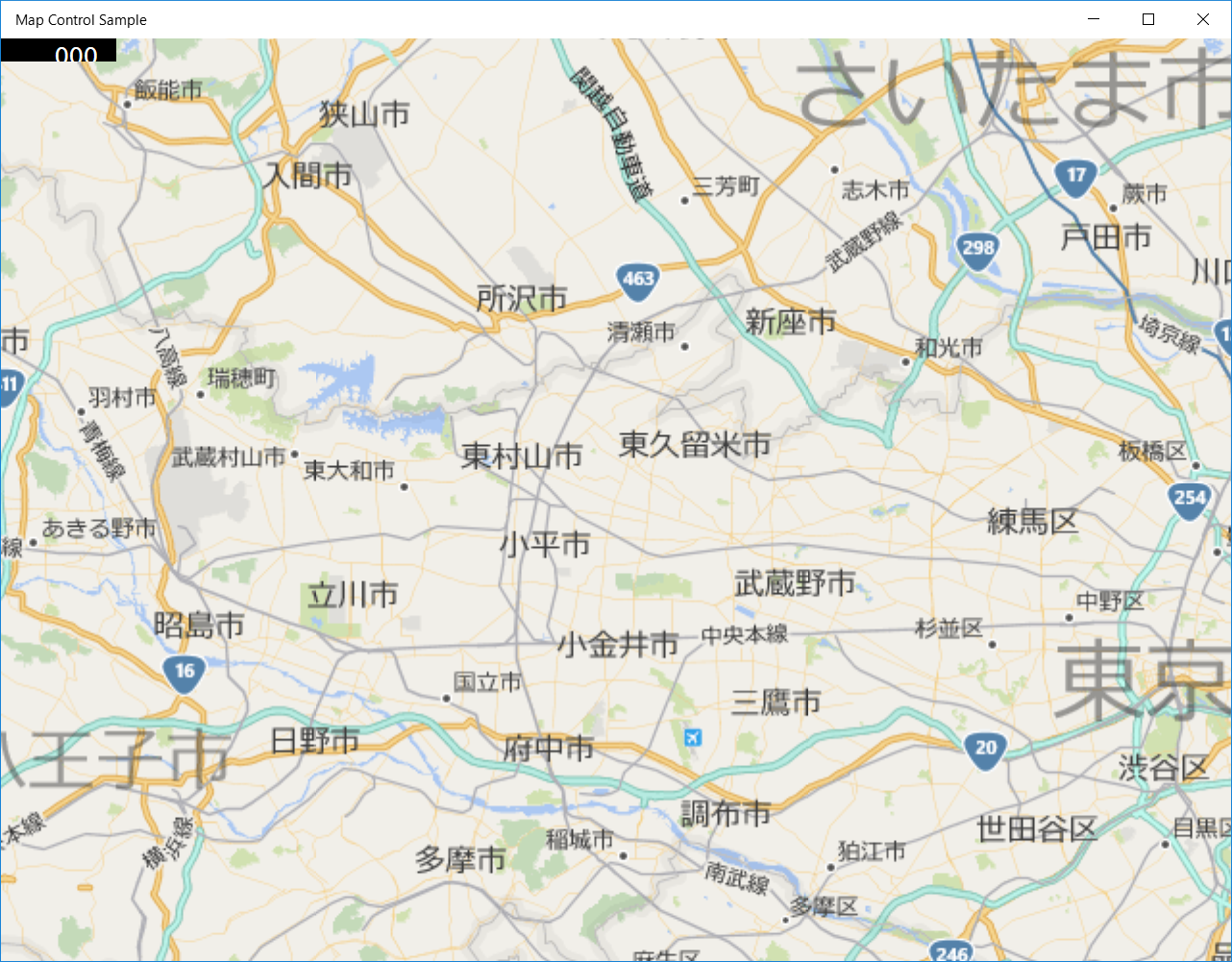
アプリを起動すると、以下のように地図が表示されます。
Please follow and like us:



コメント