
SaveFileDialogが表示されたときに最初に選択されているフォルダー(起動ディレクトリ)を設定するにはInitialDirプロパティを使用します。
InitialDirプロパティには存在するパスの文字列を設定します。
下記は起動ディレクトリを設定する例です。
画面デザインは下記のようにしました。
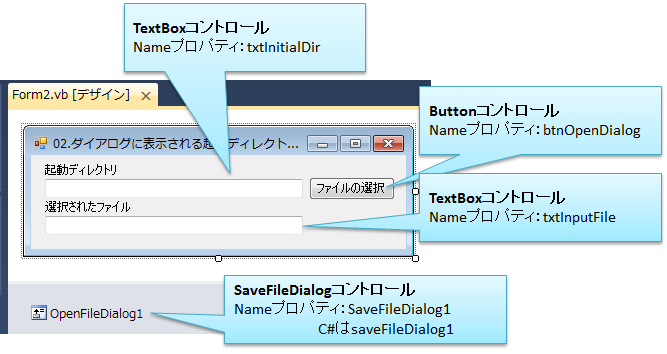
VBの例
' [ファイルの保存]ボタンクリック時の処理
Private Sub btnShowSaveDialog_Click(ByVal sender As System.Object, ByVal e As System.EventArgs) Handles btnShowSaveDialog.Click
    '[起動ディレクトリ]テキストボックスに入力されたフォルダーが存在するか?
    If Not IO.Directory.Exists(txtInitialDir.Text) Then
        MessageBox.Show("入力した起動ディレクトリは存在しません",
                        "入力エラー", MessageBoxButtons.OK, MessageBoxIcon.Stop)
        Return
    End If

    '★★★起動ディレクトリの設定★★★
    SaveFileDialog1.InitialDirectory = txtInitialDir.Text

    'ファイル保存ダイアログの表示
    SaveFileDialog1.ShowDialog()
End Sub

' [保存]ボタンが押されたときの処理
Private Sub SaveFileDialog1_FileOk(ByVal sender As System.Object, ByVal e As System.ComponentModel.CancelEventArgs) Handles SaveFileDialog1.FileOk
    Dim strFileName As String

    '入力されたファイル名を取得
    strFileName = IO.Path.GetFileName(SaveFileDialog1.FileName)

    'ファイル名をテキストボックスに表示
    txtInputFile.Text = strFileName
End Sub
C#の例
// [ファイルの保存]ボタンクリック時の処理
private void btnShowSaveDialog_Click(object sender, EventArgs e)
{
    // [起動ディレクトリ]テキストボックスに入力されたフォルダーが存在するか?
    if ( !System.IO.Directory.Exists(txtInitialDir.Text) )
    {
        MessageBox.Show("入力した起動ディレクトリは存在しません",
                    "入力エラー", MessageBoxButtons.OK, MessageBoxIcon.Stop);
        return;
    }

    // ★★★起動ディレクトリの設定★★★
    saveFileDialog1.InitialDirectory = txtInitialDir.Text;

    // ファイル保存ダイアログの表示
    saveFileDialog1.ShowDialog();
}

// [ファイルの保存]ボタンクリック時の処理
private void saveFileDialog1_FileOk(object sender, CancelEventArgs e)
{
    string strFileName;

    // 入力されたファイル名を取得
    strFileName = System.IO.Path.GetFileName(saveFileDialog1.FileName);

    // ファイル名をテキストボックスに表示
    txtInputFile.Text = strFileName;
}
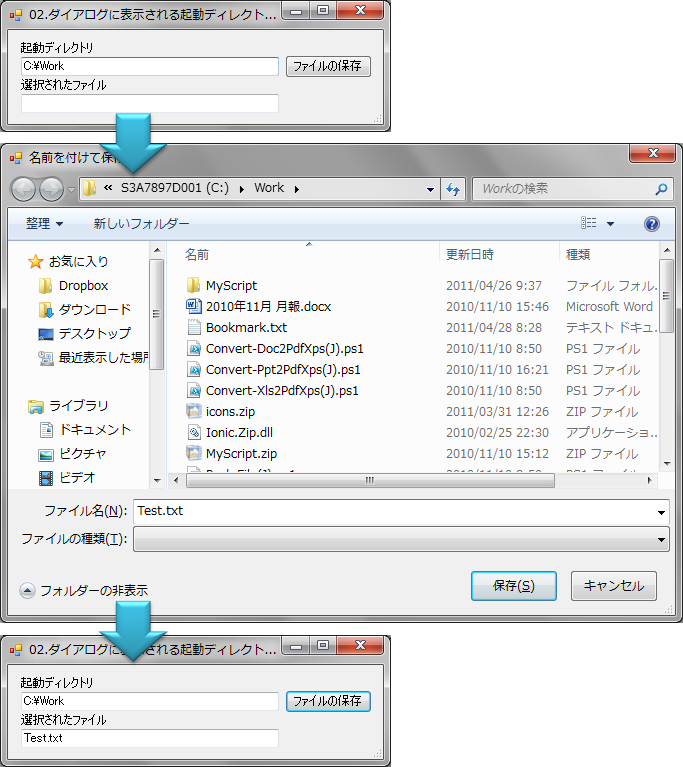
実行例は下図の通りです。
Please follow and like us:


コメント
[…] ダイアログに表示される起動ディレクトリを取得/設定する […]