
今回はTabbedPageを見ていきましょう。
TabbedPageコントロールは、文字通りページにタブを追加してページ切り替えを行うことができるようにするコントロールです。
新規でプロジェクトを作成するとメインのXAMLは以下のようにContentPageが配置されています。
<?xml version="1.0" encoding="utf-8"?>
<ContentPage xmlns="http://xamarin.com/schemas/2014/forms" xmlns:x="http://schemas.microsoft.com/winfx/2009/xaml" xmlns:local="clr-namespace:CarouselPageSample" x:Class="TabbedPageSample.TabbedPageSamplePage">
	<Label Text="Welcome to Xamarin Forms!" VerticalOptions="Center" HorizontalOptions="Center" />
</ContentPage>
TabbedPageを使用する場合は上記のContentPageをTabbedPageに変更し、その中に必要なタブの数だけContentPageを配置します。
これによりContentPageがタブページになります。ページに表示するデザインは、それぞれのContenPageの中で行います。ContentPageのTitleプロパティに設定した値はタブに表示される名称になります。
以下はTabbedPageの例です。
<?xml version="1.0" encoding="utf-8"?>
<TabbedPage xmlns="http://xamarin.com/schemas/2014/forms"
    xmlns:x="http://schemas.microsoft.com/winfx/2009/xaml"
    xmlns:local="clr-namespace:TabbedPageSample"
    x:Class="TabbedPageSample.TabbedPageSamplePage">


    <TabbedPage.Children>
      <ContentPage Title="Test1">
        <Label Text="This is page1." />
      </ContentPage>
      <ContentPage Title="Test2">
        <Label Text="This is page2." />
      </ContentPage>
      <ContentPage Title="Test3">
        <Label Text="This is page3." />
    </ContentPage>
    </TabbedPage.Children>

</TabbedPage>
また、XAMLのコードビハインドは以下のようにTabbedPageを継承するように変更をします。
namespace TabbedPageSample
{
  public partial class TabbedPageSamplePage : TabbedPage
  {
    public TabbedPageSamplePage()
    {
      InitializeComponent();
    }
  }
}
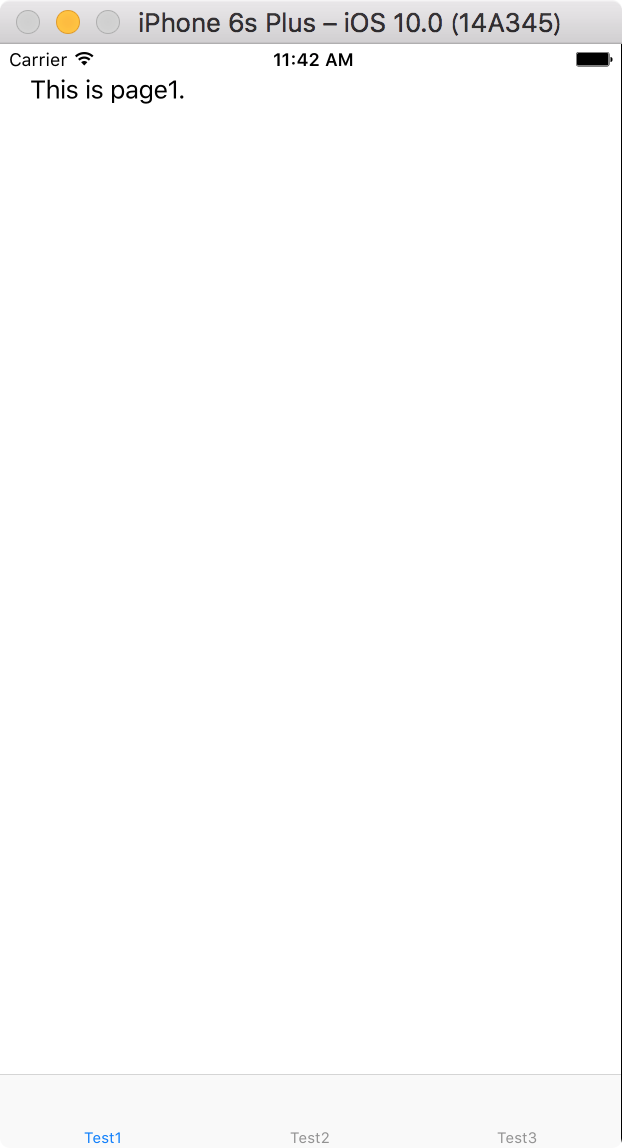
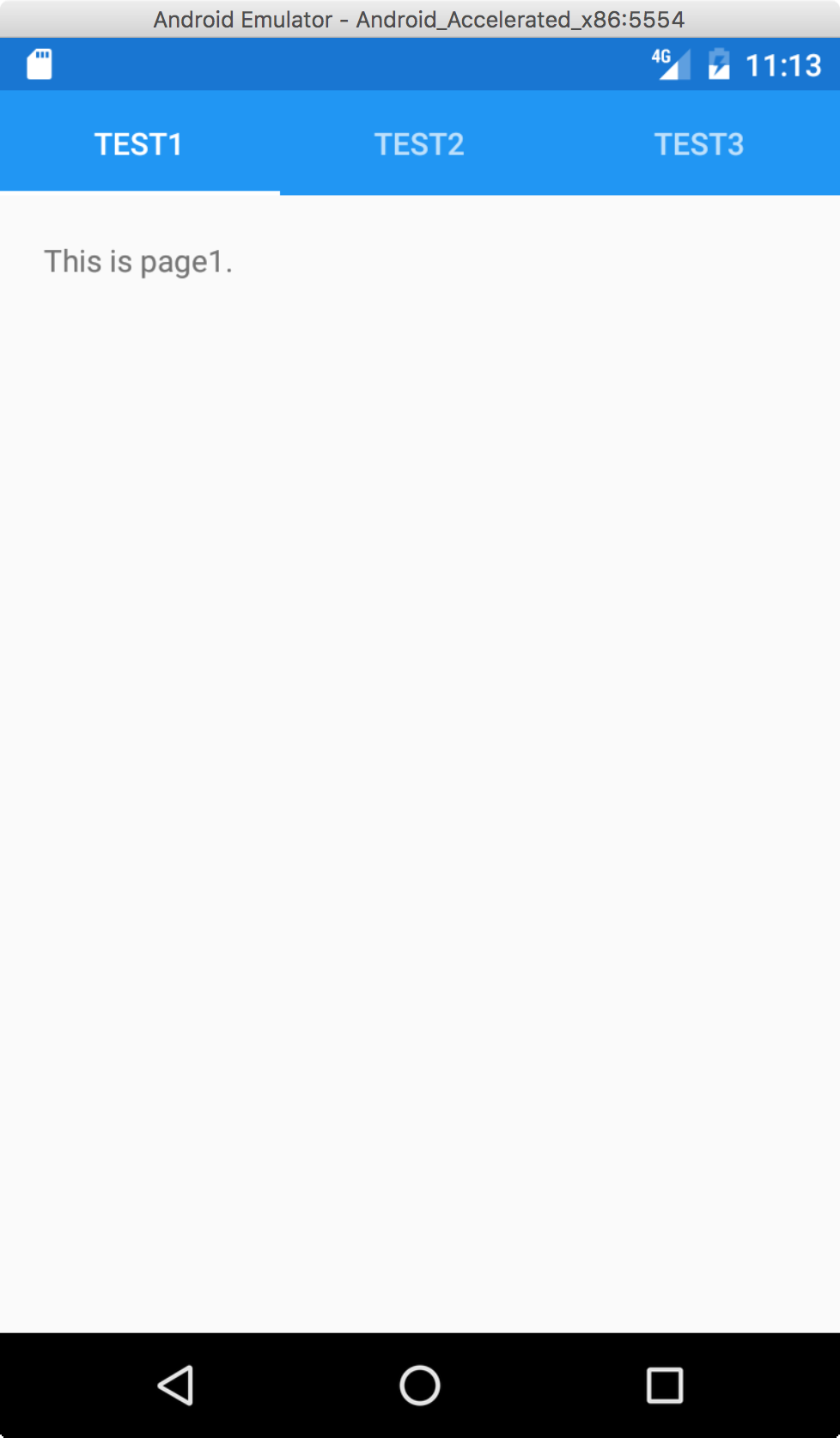
上記の実行例を以下に示します。
iOSはタブが画面の下に、Androidはタブが画面の上に表示されます。
関連記事
Please follow and like us:


コメント