
本記事の概要
この記事では Editor のテキストにフォントを設定する方法について説明をします。
公式サイト情報はコチラを参照してください。
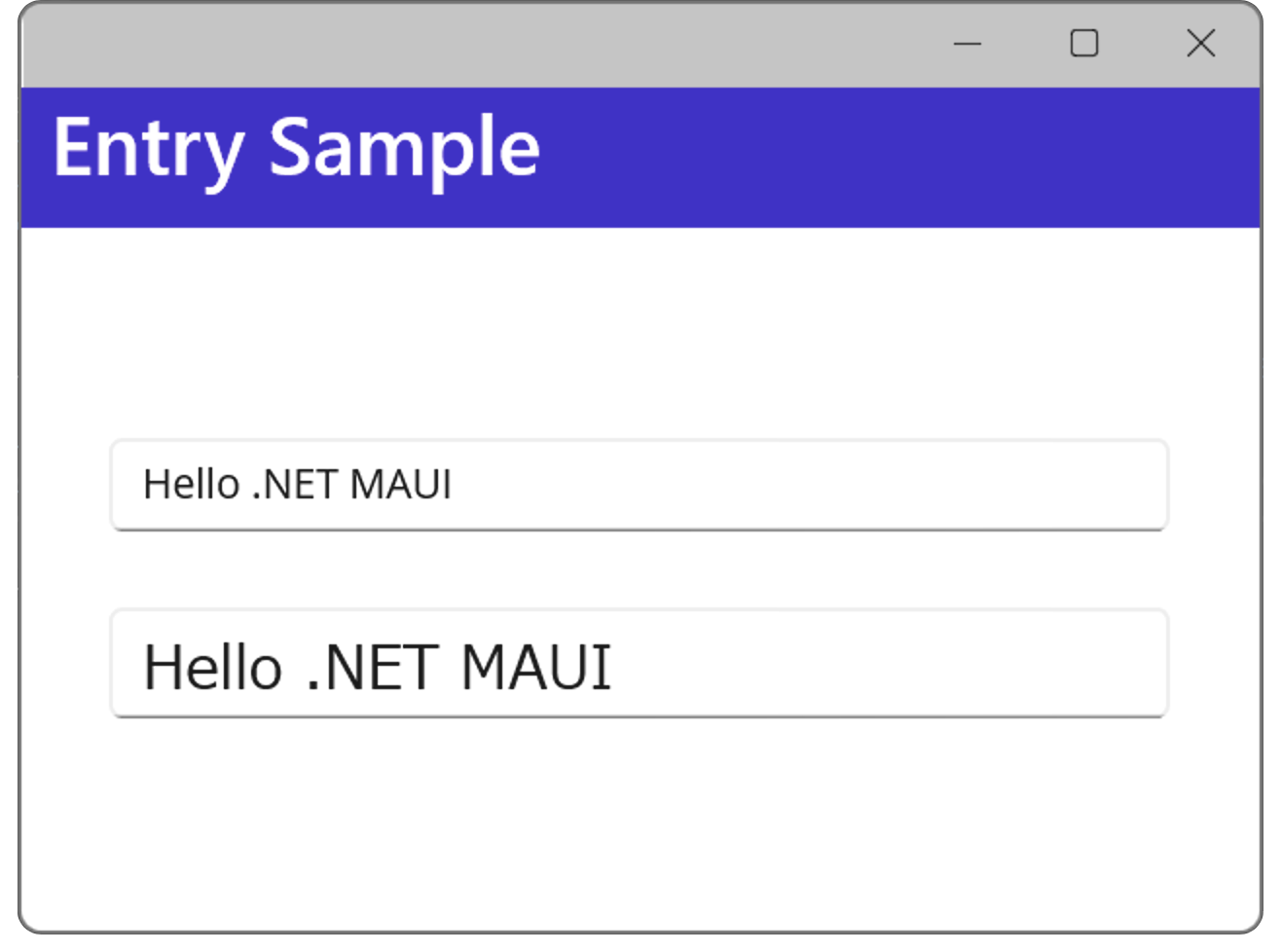
フォントとフォントサイズを設定する例

太字、斜体を設定する例
フォントとフォントサイズの設定
Editor のフォントは FontFamily プロパティで、フォントサイズは FontSize プロパティで設定します。
XAML の例
XAML でフォントを設定する例を以下に示します。
この例では2つの Editor を配置しており、上はデフォルトフォントの表示、下は Meiryo UI で 20 pt のフォントに設定しています。
XAML の例
<?xml version="1.0" encoding="utf-8" ?>
<ContentPage xmlns="http://schemas.microsoft.com/dotnet/2021/maui"
             xmlns:x="http://schemas.microsoft.com/winfx/2009/xaml"
             x:Class="MauiAppSample.MainPage">

    <ScrollView>
        <VerticalStackLayout Spacing="25" Padding="30,0" VerticalOptions="CenterAndExpand">

            <Editor Text="Hello .NET MAUI" />
            <Editor Text="Hello .NET MAUI"
                    FontFamily="Meiryo UI" FontSize="20" />

        </VerticalStackLayout>
    </ScrollView>

</ContentPage>
C# の例
以下は 先ほどのXAML の例を コードビハインドで行う例です。
C# の例
public MainPage()
{
    InitializeComponent();

    myEditor1.FontFamily = "Meiryo UI";
    myEditor2.FontSize = 20;
}
XAML の例
<?xml version="1.0" encoding="utf-8" ?>
<ContentPage xmlns="http://schemas.microsoft.com/dotnet/2021/maui"
             xmlns:x="http://schemas.microsoft.com/winfx/2009/xaml"
             x:Class="MauiAppSample.MainPage">

    <ScrollView>
        <VerticalStackLayout Spacing="25" Padding="30,0" VerticalOptions="CenterAndExpand">

            <Editor x:Name="myEditor1" Text="Hello .NET MAUI" />
            <Editor x:Name="myEditor2" Text="Hello .NET MAUI" />

        </VerticalStackLayout>
    </ScrollView>

</ContentPage>

フォントとフォントサイズを設定する例
太字と斜体の設定
Editor に表示する文字は、太字と斜体の設定をすることができます。
どちらも FontAttributes プロパティで設定することができ、太字は Bold を、斜体は Italic を指定することで設定できます。
XAML の例
XAML で太字と斜体を設定する例を以下に示します。
この例では4つの Editor を配置しており、1つ目はデフォルのEditor、2つ目は太字、3つ目は斜体、4つ目は太字かつ斜体の設定をしています。
XAML の例
<?xml version="1.0" encoding="utf-8" ?>
<ContentPage xmlns="http://schemas.microsoft.com/dotnet/2021/maui"
             xmlns:x="http://schemas.microsoft.com/winfx/2009/xaml"
             x:Class="MauiAppSample.MainPage">

    <ScrollView>
        <VerticalStackLayout Spacing="25" Padding="30,0" VerticalOptions="CenterAndExpand">

            <Editor Text="Hello .NET MAUI" />
            <Editor Text="Hello .NET MAUI" FontAttributes="Bold"/>
            <Editor Text="Hello .NET MAUI" FontAttributes="Italic"/>
            <Editor Text="Hello .NET MAUI" FontAttributes="Bold,Italic"/>

        </VerticalStackLayout>
    </ScrollView>

</ContentPage>
C# の例
以下は 先ほどのXAML の例を コードビハインドで行う例です。
C# の例
namespace MauiAppSample;

public partial class MainPage : ContentPage
{

	public MainPage()
	{
		InitializeComponent();

                myEditor2.FontAttributes = FontAttributes.Bold;
		myEditor3.FontAttributes = FontAttributes.Italic;
		myEditor4.FontAttributes = FontAttributes.Bold | FontAttributes.Italic;
    }
}

XAML の例
<?xml version="1.0" encoding="utf-8" ?>
<ContentPage xmlns="http://schemas.microsoft.com/dotnet/2021/maui"
             xmlns:x="http://schemas.microsoft.com/winfx/2009/xaml"
             x:Class="MauiAppSample.MainPage">

    <ScrollView>
        <VerticalStackLayout Spacing="25" Padding="30,0" VerticalOptions="CenterAndExpand">

            <Editor x:Name="myEditor1" Text="Hello .NET MAUI" />
            <Editor x:Name="myEditor2" Text="Hello .NET MAUI" />
            <Editor x:Name="myEditor3" Text="Hello .NET MAUI" />
            <Editor x:Name="myEditor4" Text="Hello .NET MAUI" />

        </VerticalStackLayout>
    </ScrollView>

</ContentPage>
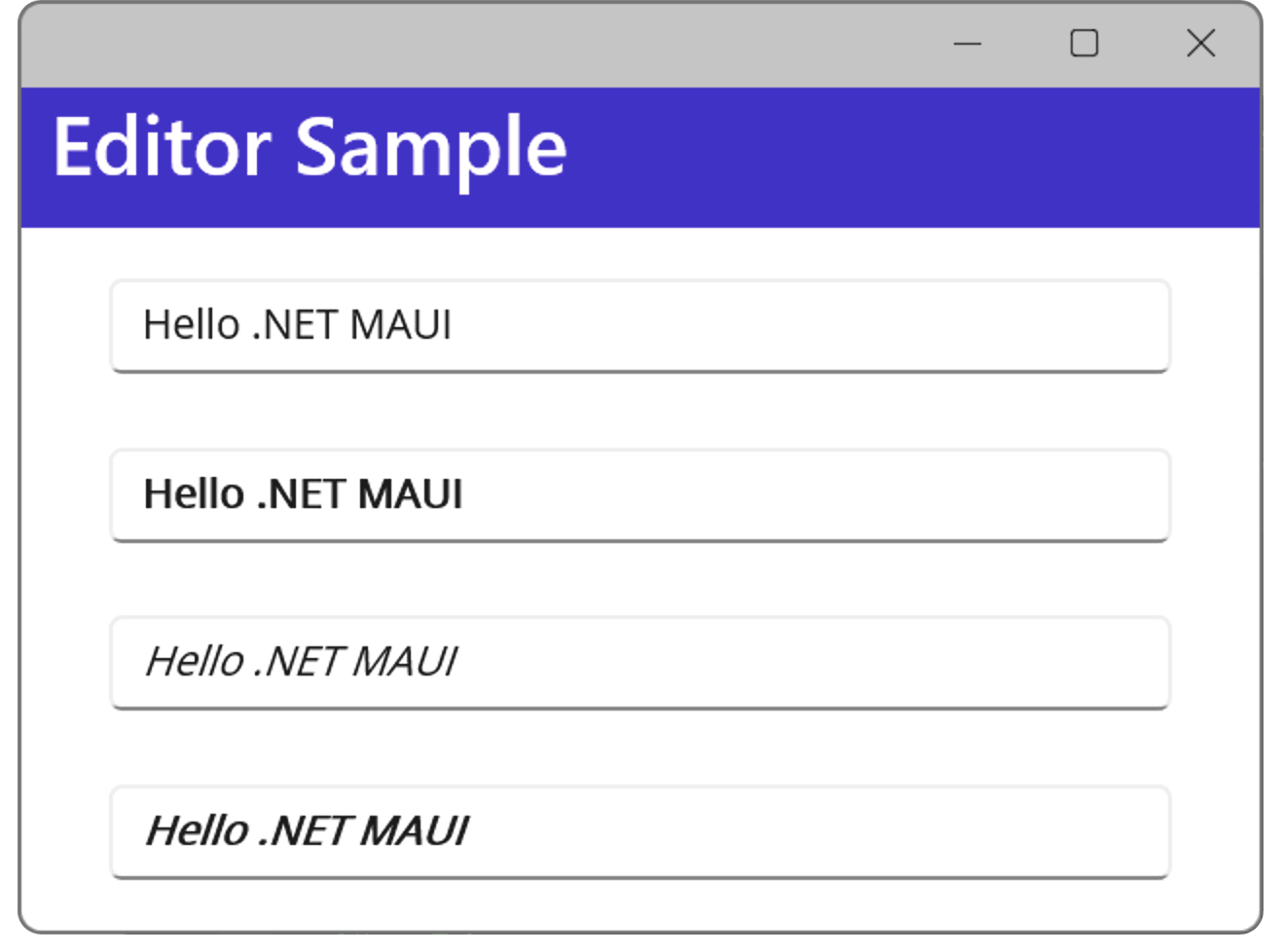
太字、斜体を設定する例
.NET MAUI Tips
本サイトでまとめている .NET MAUI Tips の一覧はこちらから確認できます。
Please follow and like us:



コメント